Your website is live, but Google does not show your pages. People may search for your company and never find it.
This can affect drug firms, biotech brands, and health businesses. Their product pages, research, and service details may be missing from search results.
Google must find a page before it can crawl it. It must then decide whether to add that page to its index. A page can pass one step and fail the next.
The first task is to find out where the process stops. This guide shows you what to check and how to fix common indexing issues.
Find the Exact Cause in Google Search Console

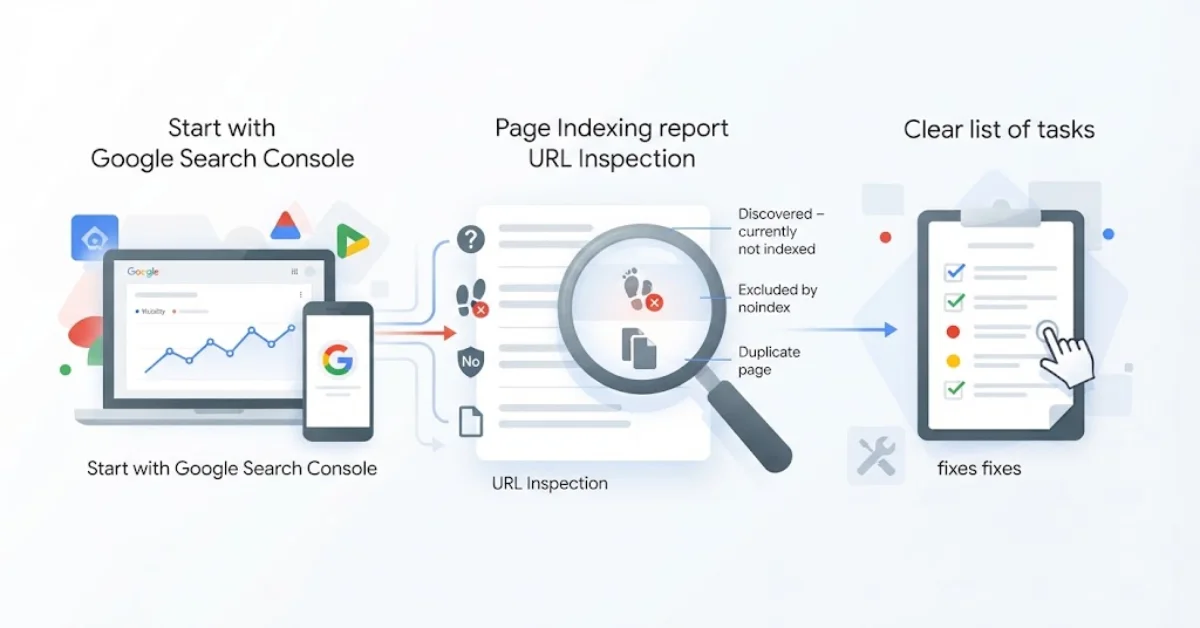
Start with Google Search Console. It is a free tool that shows how Google views your pages.
Open the Page Indexing report. Find the URLs that are missing from search results. Then use URL Inspection to check each key page.
Look for these status reports:
- Discovered – currently not indexed: Google knows the URL but has not crawled it yet.
- Crawled – currently not indexed: Google visited the page but did not add it to the index.
- Excluded by noindex: A rule tells Google not to index the page.
- Duplicate page: Google found another URL with the same or similar content.
Each status needs a different fix. Do not change your whole site based on one result.
Start with your main product, service, and company pages. Record each status and check the affected URLs.
This gives you a clear list of tasks. It also helps you avoid fixes that do not solve the real problem.
Check Whether Google Can Reach Your Pages
Google cannot index a page if it cannot read the content it needs. Some website settings can block access by mistake.
Review these three areas.
Robots.txt
This file sets rules for search crawlers. A wrong rule may block pages that should appear in Google.
Noindex tags
A noindex tag tells Google not to add a page to its index. Check that your main public pages do not have this tag by mistake.
Server errors
Google may fail to load a page if the server returns an error. Broken redirects and login barriers can also stop access.
Review the technical SEO for pharmaceutical websites that affects crawling and indexing.
Do not remove every access rule. Private records and restricted files may need protection. Only change settings that block public pages by mistake.
Remember that robots.txt and noindex do different jobs. Robots.txt controls crawling. A noindex tag tells Google not to index a page it can read.
After the fix, test the URL in Search Console.
Fix Duplicate URLs and Wrong Canonical Tags
Your website may show the same page at more than one URL. This can happen after a site move or when tracking codes create new URL versions.
Google may choose one URL to show in search results. The other versions may stay out of the index.
A canonical tag helps Google find your preferred URL. If the tag points to the wrong page, Google may choose a version you do not want.
Check these items:
- Set the right canonical URL for each key page.
- Fix redirects that lead to the wrong page.
- Update links that point to old URLs.
- Add preferred URLs to your XML sitemap.
Do not try to index every copy of a page. Google often selects one version of the same content.
Check these rules after a redesign or site move. A single error in a page template can affect many URLs.
Improve Pages That Offer Little New Value

Google may read a page but still leave it out of the index. One reason is that the page offers little useful or original information.
This can happen when many pages use the same text. It can also happen when a page has very little detail.
For example, a drug firm may have ten product pages. If each page uses the same text and only changes the product name, readers gain little from each page.
Give every page a clear purpose.
- Company pages should explain what the firm does.
- Product pages should give clear and correct product details.
- Research pages should explain the study and its main findings.
- Blog posts should answer a real question.
Health and drug content must be accurate. Check facts with trusted sources. Avoid claims that the evidence does not support. Show who wrote or checked the content when this helps readers judge its quality.
Before you create more pages, review pharmaceutical website gaps that may leave readers without the facts they need.
Improve pages that lack useful details. Join pages that serve the same need when it makes sense. Remove pages that no longer help users.
Adding more keywords will not fix weak content. Focus on facts that help readers.
Help Google Find Important Pages Through Links
Links help people move through your site. They also help Google find pages and learn how they relate to one another.
Imagine you publish a new research page. No other page links to it. Google may find it through your sitemap, but people may have trouble finding it.
Add links where they help the reader.
For example, a blog post can link to a related service page. A product group can link to full product details. A research page can link to a useful study guide.
Use link text that tells readers what they will find. Fix broken links. Make sure key pages are easy to reach from your main menu or related pages.
Your XML sitemap can also help Google find new URLs. Keep it up to date and list the main URLs you want Google to consider.
A clear site layout helps both people and search engines. When you choose pharmaceutical website templates, check the menu, page layout, and link structure.
Check Mobile Pages and Hidden Content
A page may work on your computer but fail on a phone. Some pages also rely on code that does not load as planned.
This can make key facts hard to read. It can also stop Google from seeing the main content.
Test your site on phones and computers. Check that the text, menus, and links work well.
Use URL Inspection to see how Google reads the page. Make sure the main text is there. Check for code errors that may stop content from loading.
Look for these issues:
- Menus that do not work on phones.
- Text that is hard to read.
- Images or scripts that fail to load.
- Page layouts that shift while loading.
- Important text that appears only after a failed script runs.
Good pharmaceutical website design should make key facts easy to read. Keep the layout clear and avoid effects that hide important content.
Google can read JavaScript, but code errors can cause problems. If key text is missing, ask a developer to check the page.
Fast pages and clear layouts help users. But they do not ensure that Google will index a page.
Fix the Main Errors and Track Each Result
Once you know the cause, fix the most important errors first. Start with pages that matter most to your business.
Follow these steps.
Step 1: List the missing pages. Use Search Console to find key URLs that are not in the index.
Step 2: Fix access errors. Check robots.txt, noindex tags, server errors, and login rules.
Step 3: Fix URL errors. Review redirects, canonical tags, and old links.
Step 4: Improve weak pages. Add useful facts or join pages that repeat the same content.
Step 5: Check links and your sitemap. Help Google find the pages you want it to index.
Step 6: Request indexing. Use URL Inspection after you fix a page. Google may take time to check it again.
Step 7: Check the results. Return to Search Console and review the page status.
A request does not force Google to index a page. Sending the same request again will not fix a page that still has errors.
If many pages have the same issue, check the page template or website system. One fix may solve the problem across many URLs.
Keep a record of each change. This helps you see what worked and what still needs attention.
Website Design Support for Pharmaceutical Firms

Some indexing errors need more than a small change. An old site or poor page layout can make updates hard to manage.
Website For Clinics builds websites for health-related firms. Its services focus on clear page layouts, mobile use, and sound site structure.
Before you hire a team for pharmaceutical company website design, ask how it will handle redirects, page settings, links, and future updates.
Biotech website design may also need a clear way to share research, company news, and science-based content.
A full rebuild is not always the best choice. A review of your current site may show that a few fixes are enough.
Choose a plan based on the errors found. The goal is to make key pages easy to use and easy for Google to read.